Install VisualDock Server
Follow these steps to install VisualDock Server:
-
Download and run the VisualDock Server installer from the official download page.
-
On the End User License Agreement page, review and accept the EULA.
-
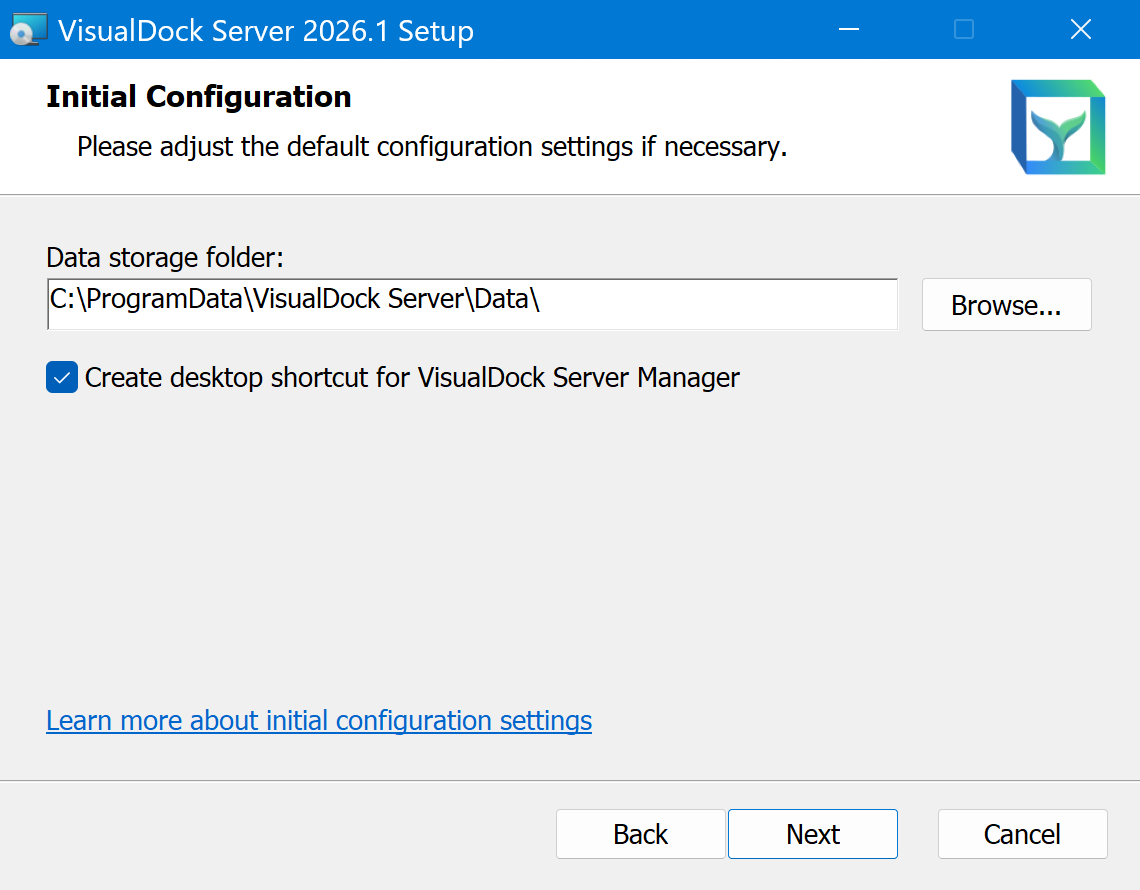
On the Initial Configuration page, adjust the following settings:
-
Data storage folder: Defines the data storage location of VisualDock Server. Select a folder that meets the Data folder requirements.
-
Create desktop shortcut for VisualDock Server Manager: Leaving this option selected is recommended, since VisualDock Server Manager is used to configure and maintain VisualDock Server.
-
-
On the Ready to Install page, click Install to perform the installation.
VisualDock Server automatically installs the required Windows Containers feature if it’s missing from the host machine. If this happens, the installer will prompt you to reboot.
-
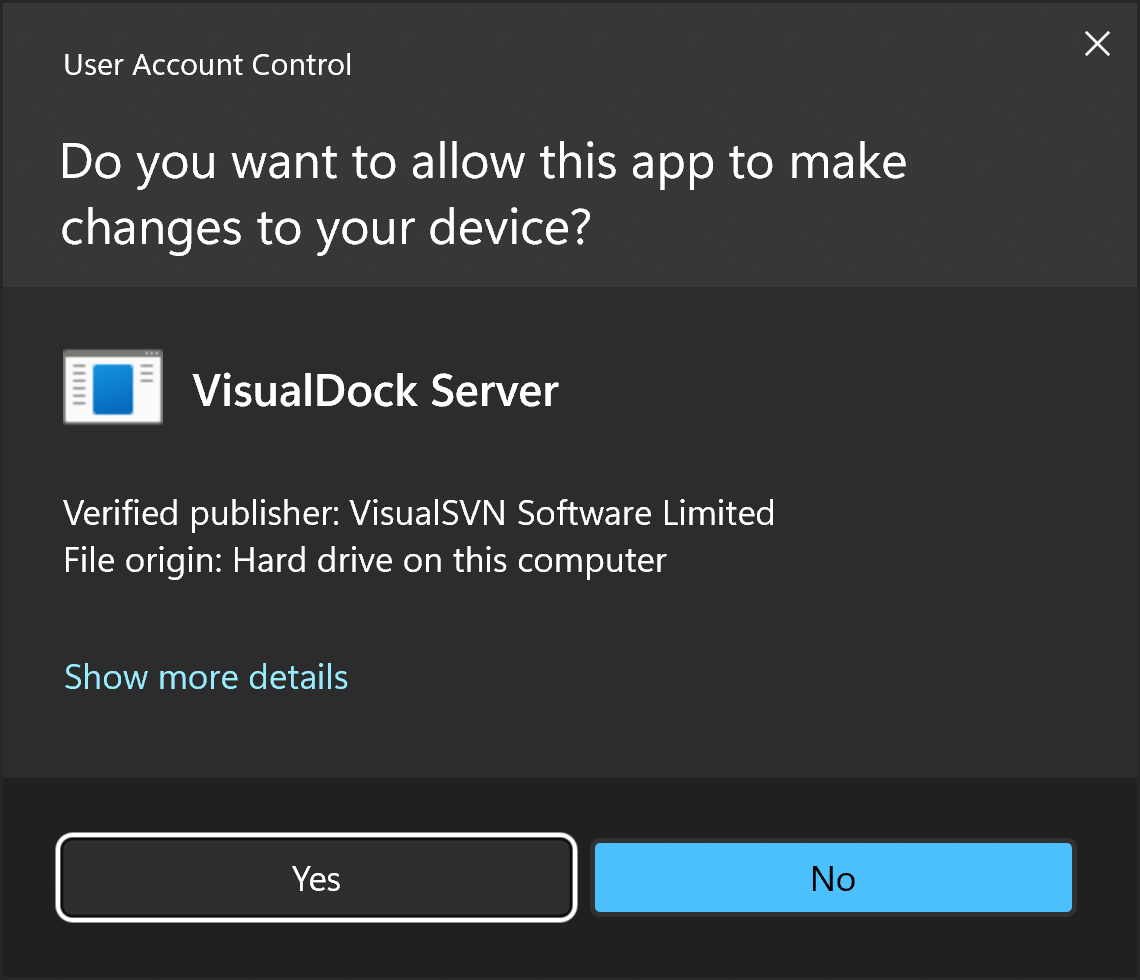
If you are prompted with the "Do you want to allow this app to make changes to your device?" message, check that the verified publisher is VisualSVN Software Limited, and click Yes to continue.
-
Launch VisualDock Server Manager after the installation is complete.